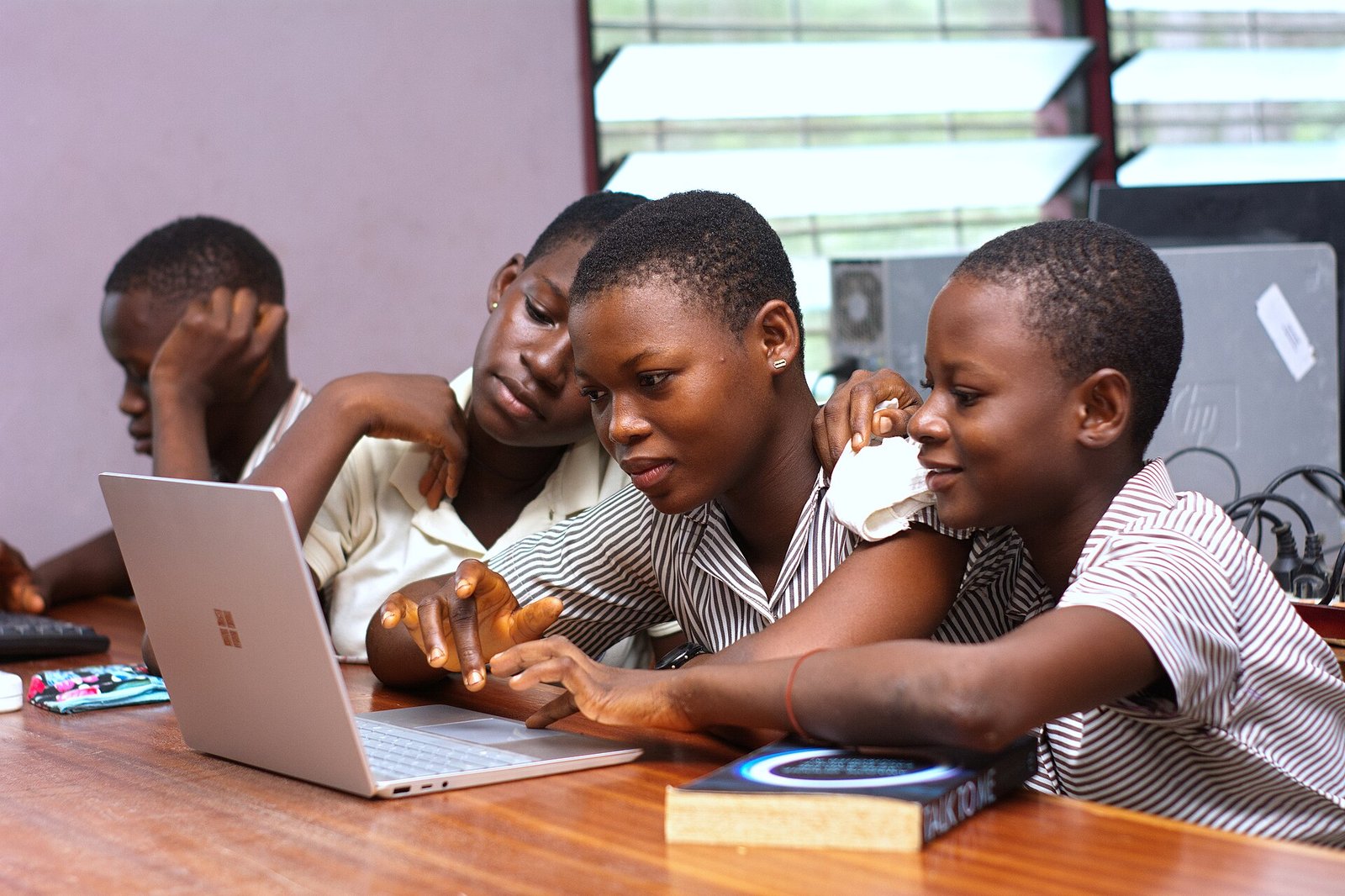
When an eight-year-old comes home with a headache after a day on a school Chromebook, it is reasonable to look at the screen setup and the rest of the school day. 8 year old headaches after school Chromebook use can have more than one cause. Eye discomfort, missed meals, dehydration, illness, stress, sleep, vision needs and migraine are all possibilities. A parent cannot diagnose the cause from one symptom, but a calm, practical check can make the next conversation with school or a clinician more useful.
This guide is general education, not medical advice or a diagnosis. Do not assume a headache is “just screens,” especially if it is new, severe, recurring or accompanied by other symptoms.
Start with a simple pattern check
For one school week, write down when the headache begins, where it hurts, how long it lasts, what your child was doing beforehand, meals and water, sleep, and whether it improves after a break. Keep the note short. The goal is to spot a pattern, not to interrogate your child or make them responsible for fixing the problem alone.
Ask neutral questions: “Does it start while you are looking at the screen, right after, or later on the bus?” “Do your eyes feel dry, tired, blurry or sore?” “Is the screen hard to see because of glare?” “Do you get headaches on days without Chromebook work too?” Their answers can help distinguish a screen-comfort issue from a broader concern that needs an exam.
What digital eye strain can feel like
Long periods of close work can leave eyes feeling tired, dry, stingy or achy; vision may blur briefly, and a child may squint, rub their eyes, lean very close or complain of a headache. The American Academy of Ophthalmology notes that screens do not permanently damage eyes simply by being used, but they can be uncomfortable after long, focused viewing. People also tend to blink less when concentrating on a screen, which can make dry or irritated eyes feel worse.
Those signs do not prove that digital eye strain is the cause. A child who has trouble seeing the board, has an outdated prescription, is getting sick, skips lunch, or is under stress can report similar symptoms. Treat the pattern as information to share, not a label.
A five-part Chromebook comfort check
1. Check viewing distance and posture
Ask the teacher whether the Chromebook can sit on a stable desk rather than a lap, couch or floor. The American Academy of Pediatrics recommends a designated work area when possible. Your child’s feet should have support, their back should be supported, and they should not need to hunch their chin toward the screen. A small footrest can be a sensible school-approved adjustment for a child whose feet do not reach the floor.
2. Reduce glare, not just brightness
Look for light from a window or overhead fixture reflecting directly on the screen. Moving the Chromebook slightly, changing the angle, or shifting the seat may help more than making the display very dim. A screen that is much brighter than the room can be uncomfortable; a screen that is too dark can make a child strain to read. Ask school staff to use the device’s normal accessibility and display settings rather than downloading an unapproved app.
3. Build in real distance breaks
Breaks should mean looking away from close work, not immediately switching to another small screen. Between tasks, encourage a child to look across the classroom, stand up, get a drink, or do the next non-screen part of the assignment. The exact schedule depends on classroom routines, so ask for short, predictable breaks that do not embarrass your child or remove them from learning.
4. Make text easier to read
Small text, crowded pages and poor contrast make sustained reading harder. Ask whether browser zoom, a larger font, increased contrast, read-aloud tools, printed material or teacher-provided copies are available. The useful choice is the one that helps your child read comfortably while still completing the same learning task.
5. Remember food, water and sleep
A Chromebook may be the most visible part of the day without being the whole story. Confirm that your child has time to eat lunch, drink water and use the bathroom. Notice whether headaches follow a late bedtime, a rushed morning, sports practice, an upsetting school event or a long bus ride. These details matter to a clinician and may point to changes beyond the screen setup.
A short script for the teacher or school nurse
Try: “My child has reported headaches after Chromebook-heavy school days. We are tracking the timing and will speak with their clinician if it continues. Could we compare notes on when it happens, check for glare and seating issues, and try brief distance breaks or larger text where it fits the lesson?”
Keep the first request small and reviewable. A teacher can often observe whether your child squints, moves close to the screen, skips breaks or reports pain at a consistent point in the day. The school nurse can explain the school’s policy for symptom visits and medication. Do not send medication to school or ask staff to give it unless you follow the school’s documented process and your clinician’s instructions.
When to arrange a routine clinical check
Contact your child’s pediatric clinician or eye-care professional if headaches recur, interfere with school or play, happen outside screen use, or come with frequent squinting, blurred vision, eye pain or trouble seeing at school. They can ask about the pattern, review vision needs and decide whether further assessment is appropriate. Bring your one-week note and any feedback from school.
Get urgent medical advice for red flags
Seek urgent medical care for a sudden, severe or rapidly worsening headache; headache after a significant head injury; fainting; seizure; confusion; weakness; trouble walking or speaking; stiff neck with fever; persistent vomiting; new double vision; or any symptom that makes your child seem seriously unwell. If you are unsure how urgent a symptom is, contact your local urgent-care service or clinician for guidance.
What not to do
- Do not tell your child they are “making it up” because the headache follows schoolwork.
- Do not assume blue-light glasses, supplements or an app will solve a recurring symptom; discuss persistent symptoms with a clinician.
- Do not make your child miss needed learning breaks as punishment for reporting pain.
- Do not change a prescribed vision plan or give medicine without appropriate professional and school guidance.
A parent checklist for this week
- Track timing, symptoms, meals, water and sleep for five school days.
- Ask about glare, seat height, text size and distance breaks.
- Make one practical classroom adjustment and review whether it helps.
- Book a routine clinical or eye-care check if headaches repeat or affect daily life.
- Use urgent care for severe or neurological red-flag symptoms.
The bottom line
For an 8 year old headaches after school Chromebook use, start with comfort, context and a clear symptom record. Better posture, readable text, less glare and predictable distance breaks can make close screen work easier. Recurrent or concerning headaches still deserve clinical attention, because the screen may be one clue rather than the full answer.