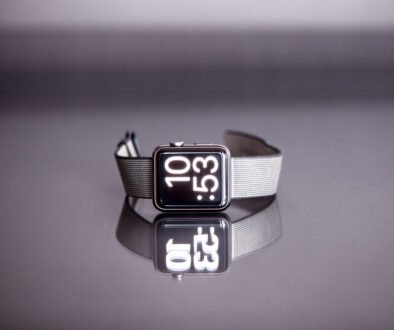
Is my child’s GPS smartwatch safe? The honest answer depends less on the word “kids” on the box and more on the specific watch, its companion app, your account settings, and how your family uses location tracking. A watch may offer useful calling or location features while also collecting precise location, contacts, device identifiers, messages, voice data, or usage information.
You do not need to become a cybersecurity specialist before school starts. You do need to know what information leaves the watch, who can reach your child, who can see their location, and how to close access when the device is lost or no longer used. This 10-minute check gives you a practical place to begin. It cannot guarantee that a device is secure, and privacy protections vary by product, jurisdiction, and account setup.
First, find out what the watch actually collects
Start with the manufacturer’s current privacy policy and the listing for the companion app. Do not rely only on packaging phrases such as “parent approved” or “safe for kids.” Search the policy for terms including location, geolocation, contacts, voice, messages, camera, advertising, analytics, retention, deletion, and service providers.
Write down what you learn in five plain-language lines:
- What personal information does the watch and app collect?
- Why does the company say it needs each type of information?
- Who receives or processes that information?
- How long can it be kept, and can a parent delete it?
- What happens to the information if you close the account?
In the United States, the Children’s Online Privacy Protection Act, or COPPA, places requirements on certain online services that collect personal information from children under 13. That legal framework is useful, but it is not a substitute for reading the policy of the device you are considering. A product’s features, company practices, and protections may change, and families outside the United States are covered by different laws.
The 10-minute GPS smartwatch privacy check
Place the watch and the parent phone together. Open the watch settings, companion app, and parent account. If a menu name differs from the steps below, use the manufacturer’s official support page rather than guessing.
Minute 1: Install current updates
Update the watch firmware, companion app, and parent phone operating system. Updates often include security fixes as well as feature changes. Turn on automatic updates if the product supports them and if that choice fits your family’s device-management plan. A watch that no longer receives support deserves extra caution because newly discovered problems may remain uncorrected.
Minute 2: Replace default or reused passwords
Use a unique password for the parent account—one that is not used for email, shopping, or another device. If the account supports multi-factor authentication, enable it and store recovery information securely. Check whether another adult is signed in unnecessarily, and remove old devices or sessions you do not recognize.
Minute 3: Review who can call or message
Open the approved-contact list. Confirm every person and number. Remove test contacts, old caregivers, and duplicate entries. If the watch offers an “anyone,” public-discovery, friend-request, or nearby-device option, turn it off unless you have a clear reason to keep it. Ask your child to show you what an unknown contact or unexpected message looks like and how they would tell you.
Minute 4: Limit who can locate the child
Check exactly which accounts can view the watch’s current or recent location. Do not assume that membership in a family group is harmless; each member should have a current need for access. Review location alerts, geofences, arrival notifications, and sharing links. Delete old temporary links and remove people who no longer provide care.
Location data is sensitive because it can reveal routines such as home, school, activities, and travel patterns. Give access to the smallest practical group rather than every relative by default.
Minute 5: Turn off permissions that are not needed
Look at the companion app’s permissions on the parent phone and at services enabled on the watch. Does the app need constant background location, the full address book, microphone, camera, photos, Bluetooth scanning, or advertising tracking for the features your family actually uses? Disable an unnecessary permission, then test the core function. If the watch stops working, consult official support before restoring broad access.
Minute 6: Check location history and deletion controls
Find out whether the app stores a timeline, how far back it goes, and whether you can delete individual records or the complete history. Also locate the account-deletion process. “Remove app” is not the same as “delete account,” and removing the watch from your wrist does not necessarily erase cloud data.
If deletion instructions are missing or unclear, contact the company before depending on the device. Save the answer with the purchase record so you can act later.
Minute 7: Confirm emergency and SOS contacts
Call each listed emergency contact and make sure the number is current. Explain what the watch does when the child presses SOS: whom it calls, whether it sends location, whether it records or transmits audio, and what happens if the first person does not answer. Practice once in a controlled setting if the manufacturer permits a test, and warn contacts first so no one mistakes it for a real emergency.
Teach your child that SOS is one tool, not a guarantee of a connection or immediate rescue. They still need age-appropriate plans for finding a trusted adult, contacting emergency services where appropriate, and following school procedures.
Minute 8: Review microphone, camera, and voice features
If the watch can make video calls, take pictures, record voice messages, or accept remote listening commands, identify who can start each function and when. Consider whether the feature could capture classmates, teachers, private conversations, or sensitive places. Disable features you do not need, and explain that other people deserve privacy too.
Minute 9: Set school mode without assuming it solves everything
Configure school or classroom mode for the correct days and hours. Test which functions remain available: the screen may be restricted while tracking, emergency calling, notifications, or other services continue. Do not promise a teacher that “everything is off” until you have tested the actual watch.
Check the school’s current written policy. Some schools restrict phones and communication wearables during lessons, exams, or the full school day. Decide where the device will be stored if it cannot be worn or used. School mode does not override school rules.
Minute 10: Prepare for loss, resale, or retirement
Find the remote-lock, lost-device, unlink, reset, and account-deletion controls now. Record the watch serial number and support route somewhere other than the watch. If the device is lost, contact the mobile carrier or service provider when relevant, remove access tokens or payment features, and follow the manufacturer’s lost-device instructions.
Before selling, donating, recycling, or handing the watch to another child, back up only what you need, remove it from family accounts, perform the documented factory reset, and request cloud-data deletion when appropriate. Verify that the old watch no longer appears as an active device.
Talk to your child about tracking before you turn it on
A privacy check should include the person wearing the watch. Explain who can see the location, what the adults will use it for, and when they will check. A simple explanation might be:
“Your watch can share your location with me and Dad so we can coordinate pickup and help if a plan changes. We will not use it to quiz you about every small movement. If the location looks wrong, we will call you instead of assuming the map is exact.”
Maps and alerts can be delayed or inaccurate. Constant checking may also undermine trust or create the false impression that a child is safe simply because a dot appears on a screen. Pair the watch with skills: knowing trusted adults, following the agreed route, checking in, recognizing unsafe contact, and asking for help.
If the watch supports messaging, teach three clear rules:
- Do not answer an unknown person or accept an unexpected contact request.
- Do not share a home address, school schedule, password, photo, or live location with someone who is not approved.
- Show a trusted adult any message, call, image, or request that feels confusing, secret, threatening, or uncomfortable.
Make reporting easy. A child is more likely to ask for help if an honest mistake does not automatically lead to shame or the permanent loss of every device.
When the privacy policy should make you pause
Consider delaying setup, returning the product, or choosing a simpler device when you cannot get clear answers about essential practices. Warning signs include:
- No clear privacy policy for the watch and companion app
- Vague descriptions of who receives precise location or children’s data
- Permissions that appear excessive for the promised function
- No understandable route to delete history or close the account
- Default passwords, weak account controls, or no way to review authorized users
- A discontinued product with no visible update or support commitment
- Public profiles, discovery, or messaging features that cannot be limited
The FTC’s Protecting Kids Online guidance recommends reviewing privacy settings and talking with children about what they share. For a smartwatch, turn that broad advice into device-specific questions: who sees the child’s location, what the app stores, and whether your family can delete it.
A smartwatch is part of a wider independence plan
A GPS watch can support communication, but it should not make the readiness decision by itself. If your child is beginning an independent school journey, use a route-specific skills check such as Nappot’s bike-to-school route test for ages 8–12. If the watch is a bridge toward a phone, agree on contacts, location rules, privacy, and check-ins before adding more apps; the same principle appears in our family tech agreement before the first phone.
Review the smartwatch after the first week, after a caregiver changes, after a major app update, and at least every few months. Remove access that is no longer needed. Ask whether the watch still solves a real family problem and whether a less data-intensive option—such as a basic call-only device, written pickup plan, or school-approved check-in—would be enough.
Frequently asked questions
Can strangers contact a child’s GPS watch?
That depends on the device, account setup, network, and contact controls. Some products use approved contacts, but parents should verify the list and disable discovery or open communication features if present. Test incoming calls and messages rather than relying on a marketing description.
Should location tracking stay on all day?
There is no universal answer. Match tracking to a specific need, limit viewers, explain it to the child, and check school rules. If you need location only for a commute or pickup, look for schedules or settings that reduce unnecessary sharing. Do not treat tracking as a replacement for safety skills or communication.
What data do children’s smartwatches collect?
It varies. Depending on the product and enabled features, data may include account details, precise location and history, contacts, device identifiers, calls or messages, voice or image data, diagnostics, and app analytics. Read the current manufacturer policy and permission screens for the exact device.
Can a school ban a GPS smartwatch?
Schools and jurisdictions can set rules for communication devices and wearables. Policies may restrict use, require the watch to remain stored, or allow only specific functions. Check the school’s current policy directly; a parent’s safety preference does not automatically override classroom or campus rules.
The bottom line
“Is my child’s GPS smartwatch safe?” is not a one-time yes-or-no question. Safety and privacy depend on the device, updates, account security, permissions, approved contacts, data practices, and family habits. Run the 10-minute check, involve your child, test the controls, and verify school policy.
If the company cannot explain what it collects or how you can control and delete that information, you do not have to accept the trade-off. A simpler device or a stronger non-device check-in plan may meet the same need with less data.