When Family Link controls on school Chromebook do not seem to work, it is tempting to keep changing settings in the parent app. Often, though, the issue is not a missed switch. A school-issued Chromebook and school Google account are managed by the school, while Family Link is designed to supervise a child’s personal Google account. Those two systems have different jobs and limits.
This practical check can help you identify which setup you have, ask the school the right questions, and avoid accidentally making school access harder for your child. It is general technology guidance, not a way to bypass school rules or monitoring.
Start with the device-and-account check
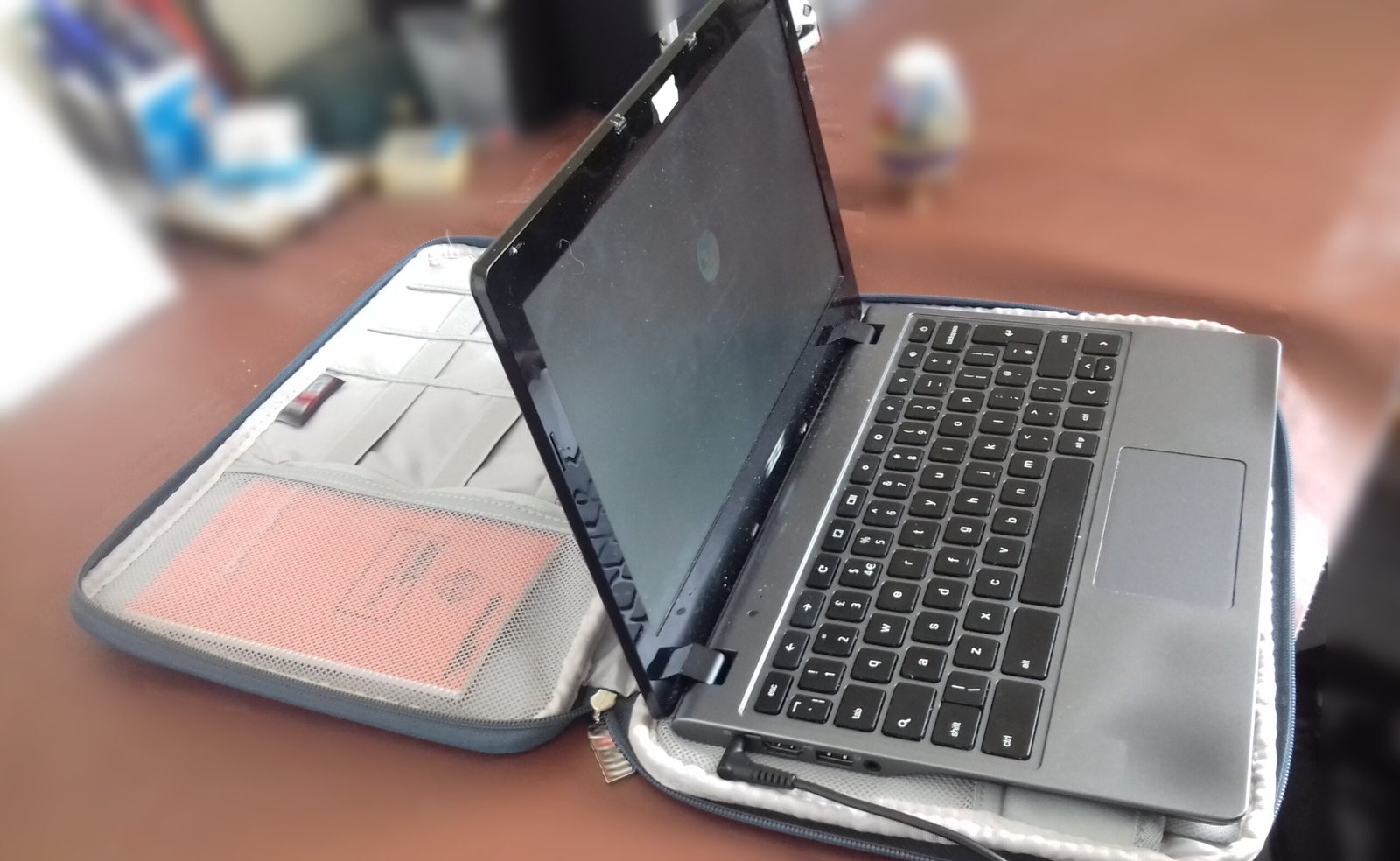
Ask two separate questions: “Who owns or manages this Chromebook?” and “Which account is signed in?” A Chromebook supplied by a school is usually enrolled in that school’s Google Workspace for Education system. The school can decide which apps, websites, accessibility features, and services are available when a student uses its account. That management does not mean the school can see everything on every personal device, but it does mean the school controls its own device and account environment.
Google’s guidance says parents cannot add Family Link controls when a child is using both a school Chromebook and a school account. So a parent may see that Family Link is working normally on a home device, but not see the same controls change the school Chromebook. That difference can be expected rather than a technical failure.
A five-minute setup check
- Look at the sign-in screen. If the Chromebook signs in directly with a school email address, treat it as a school-managed setup unless the school confirms otherwise.
- Check whether the device was issued by school. A label, asset tag, school help page, or teacher can confirm this. Do not factory-reset, powerwash, or try to unenroll a school device.
- Open Family Link on the parent’s device. Confirm the child’s personal Google account is the one under supervision. A school email and a personal Gmail account can belong to the same child but still be separate accounts.
- Notice how the school account was added. On a personally owned Chromebook, a school account can be added as a secondary account under a Family Link-supervised child account. Adding the school account as a separate user at the sign-in screen is different; Google says Family Link controls will not apply to that separate user.
- Write down the exact problem. For example: “bedtime does not apply,” “a website is blocked at home but open at school,” or “the school account will not add.” A specific example makes school support much more useful.
What Family Link can and cannot do here
On a personal Chromebook signed in with a Family Link-supervised child account, parents may manage Chrome website access, app use, screen time, and other available settings. Google also notes that children cannot browse privately on a supervised Chromebook account. These features can change over time, so check the current Family Link help pages rather than relying on an old screen recording.
School accounts are different. Google Workspace for Education administrators decide which Google services students can use while signed in to a school account. A school may restrict apps or websites for learning and safety, and it may need to enable some features for home use. A parent cannot reliably override those school decisions through Family Link. Trying to do so can create sign-in problems or interfere with classwork.
If the Chromebook is personally owned
A home Chromebook can sometimes use both systems more smoothly. Google’s instructions say the child should first sign in with their Family Link-managed personal Google account. Then a parent-approved school account can be added as a secondary account through Settings, People, and Accounts. This lets the child use school tools such as Google Classroom while their Family Link account remains the main Chromebook account.
Before changing anything, check the Chromebook’s ChromeOS version and save any local school work. Follow the current Google instructions exactly. If the school account is added as a separate user from the sign-in screen, it may not receive Family Link settings. Do not share a parent password with a child or disable supervision just to make a school login easier.
How to work with the school
Contact the teacher, school technology office, or family help desk with a short, neutral message. Explain that your child uses a school account or school-issued Chromebook and name the feature you are trying to understand. Ask: “Is this device school-managed?” “Which settings are controlled by the school?” “Can a personal Family Link account be used on this device?” and “What is the approved way to access homework at home?”
Keep the goal focused on access and safety, not surveillance. A school may have its own filtering, reporting, accessibility, and privacy procedures. Ask for its acceptable-use policy and family technology guidance. If a website or app is needed for class but is blocked at home, ask the teacher or technology team for the approved solution rather than turning off safeguards.
A simple home routine that still helps
- Keep a shared charging place outside the bedroom when possible.
- Set a clear homework window and a calm end-of-day device routine.
- Review school messages and assignment expectations together once a week.
- Teach your child to tell an adult when a login, link, or message feels confusing or unsafe.
- Use the parent-controlled personal account and home device for the family settings that Family Link supports.
When to ask for more help
Ask the school technology team if the child cannot complete assigned work, the device is showing an unexpected management message, or an accessibility feature is unavailable. Ask Google’s official help resources if a personally owned Chromebook cannot add the school account as a secondary account after you have followed the current steps. If you are concerned about online safety, bullying, or a troubling message, save the relevant details and follow your school’s reporting route.
The bottom line
Family Link controls on a school Chromebook may appear not to work because the school device and school account are managed separately. First identify the device owner and signed-in account. Then use Family Link for the child’s personal account, add a school account only in the approved secondary-account setup on a personal Chromebook, and ask the school to handle settings it controls.